How to block social media at work
You open a social app between emails without deciding to. What helps is a phone that changes when work starts. Here are three ways to set that up, depending on where you work.

Free for 7 days.
What your iPhone can already do
- A Work Focus can turn on when you arrive at the office or at set hours. It silences notifications and can hide Home Screen pages, but apps still open when you tap them.
- Screen Time can block apps on a schedule (Downtime) or after a daily limit (App Limits). It goes by the clock, so a day off or a day working from home counts the same as a day at your desk, and a blocked app opens again with one tap unless someone else knows the passcode.
How to block apps at work
A Focus and Screen Time both leave the app a tap away. MindFence blocks it by place, by time or both. Pick the way that fits where you work.
1. Blocked while you’re at the office
This works best if you work in the same building most days. The rule goes by where you are, so a holiday or a sick day is left alone.
- Install MindFence, allow Screen Time, and set Location to Always in Settings ▸ MindFence ▸ Location.
- In Places, save your office. Give it a radius of 150 m or more.
- Tap New Rule and choose Work Hours. It’s set to your office, 09:00 to 17:00 on weekdays.
- Choose the apps: social, video, games, news, whatever pulls you away.
- Change the hours to match your day, or take them out so the rule runs whenever you’re there.
Walk in and the apps are blocked, even with MindFence closed. After you leave, they’re back.
2. Working from home
When home is also the office, place alone can’t tell work from the evening, so use a time. Choose Customise Days and give each day its own hours, with the weekend off.
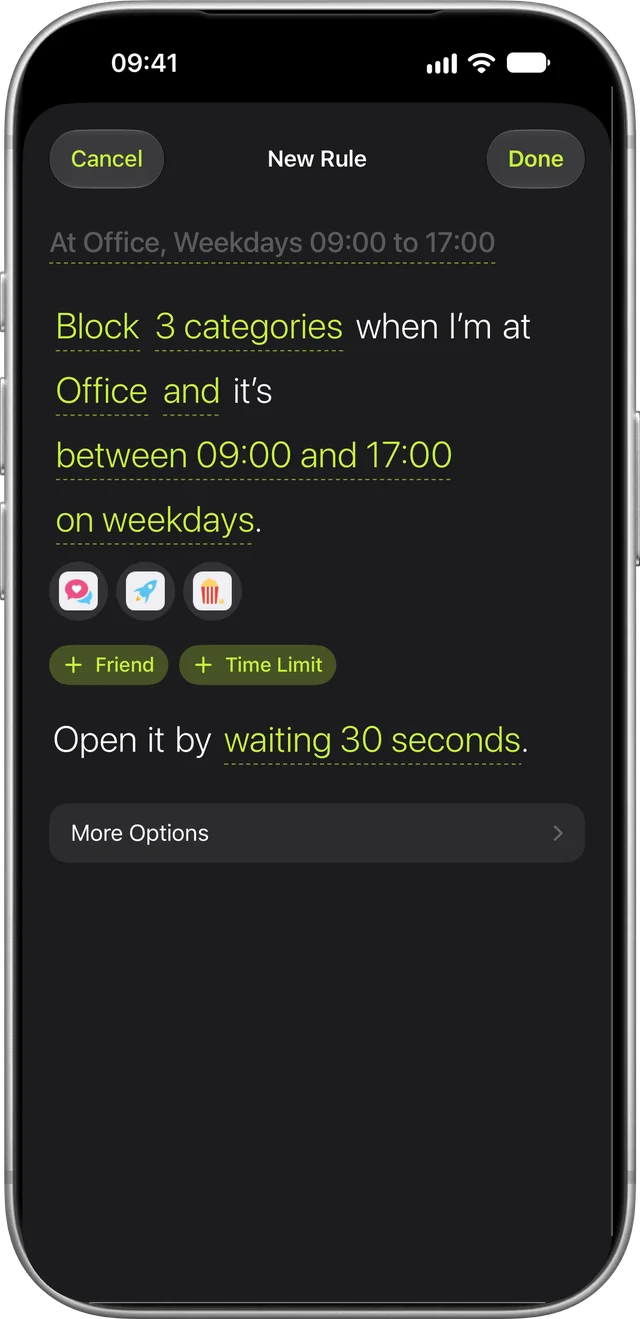
Hybrid week? Combine them: Block social at Home from 09:00 to 17:00 on weekdays covers home days, and the office rule covers the rest.
3. Work apps off when you leave
The other direction matters too. If Slack or email follows you home, choose When I Leave instead of When I Arrive. The rule is on while you’re away from the office, so work apps are blocked in the evening and back when you walk in.
On your work Mac
Social media is a browser tab away on a laptop. MindFence on a Mac blocks the sites you choose with the same rule as your phone: Block social at Office stops the apps on your iPhone and the sites on your Mac. Other Mac apps keep working, so your work tools are never in the way.
Keep MindFence open in the menu bar and set Location to Always, so your Mac notices when you get to work. If you’d rather not use location on the Mac, a time rule works there too: Block social between 09:00 and 17:30 on weekdays.
Choosing how strict
- Wait to Open is the Work Hours default. A blocked app makes you wait, from 10 seconds to 5 minutes, then opens for 15 minutes. Good for a lunch break without turning anything off.
- Can’t Turn Off Early keeps the rule on until 17:00 or until you leave. Good for a deadline week.
- Always Allowed keeps the apps you need for work open inside a blocked category, like a networking app for a recruiter or a video app for a video editor.
A few tips
- Start with one or two apps. Add more later.
- Write a message. The blocked screen can show your own words, like “Finish the report first.”
- Keep Wi-Fi on, even if you don’t join the office network.
Try MindFence free
Pick the apps, then where or when. No account needed. Works on iPhone and iPad with iOS 18 or later, and Mac with macOS 15.3 or later.
Free for 7 days.