How to block apps at night on iPhone
You put the phone down at 23:00 and pick it up again at 01:00. Here’s how to make the apps you scroll in bed wait until the morning.

Free for 7 days.
Why Downtime isn’t enough
Screen Time’s Downtime (Screen Time Schedule from iOS 27) blocks everything except your Always Allowed apps between set hours. The catch is what happens when you tap a blocked app: unless someone else holds your Screen Time passcode, Ignore Limit lets you straight back in. If you tap past it most nights, you need a block that asks for more than a tap.
With MindFence
- Install MindFence and allow Screen Time when it asks.
- Tap New Rule and choose Bedtime. It’s set to Anywhere, 22:00 to 07:00.
- Choose the apps or categories to block, like social and games.
- Change the times if you like. Every Day uses the same hours all week; Customise Days gives Friday and Saturday a later start.
- Choose how hard it is to open a blocked app, then tap Done.
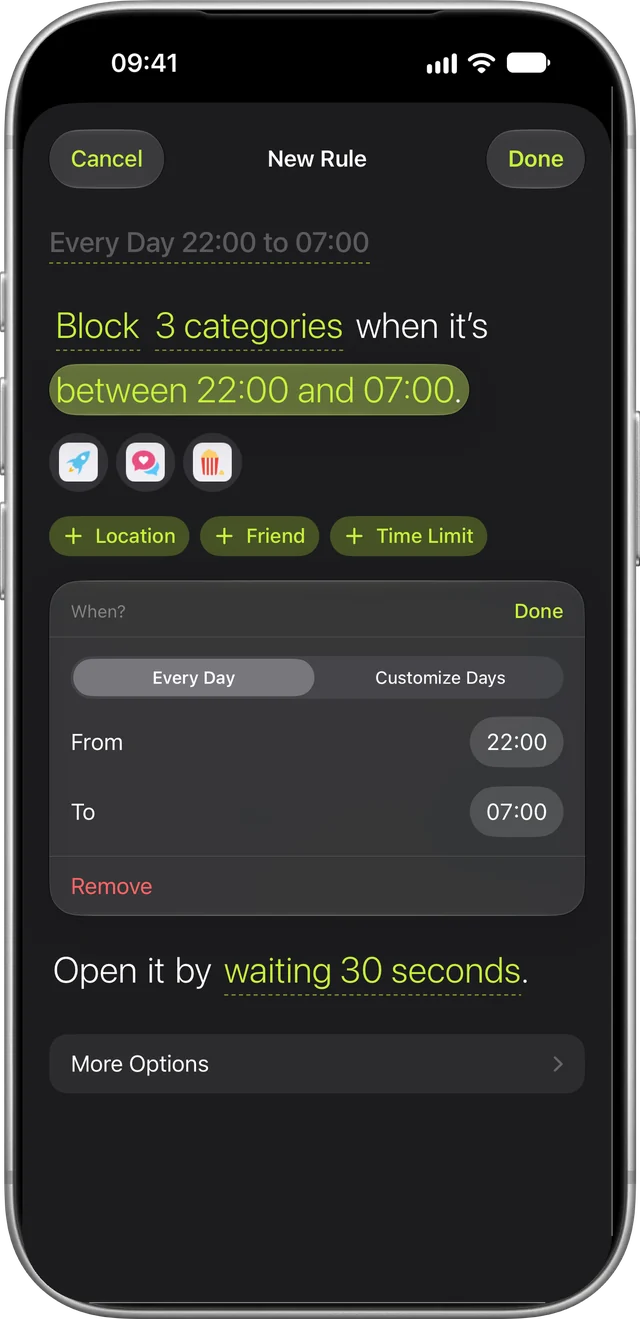
The rule starts at 22:00 and stops at 07:00, even with MindFence closed.
How strict should it be?
Each rule has its own setting, so a bedtime rule can be stricter than your daytime ones.
- Wait to Open. A blocked app makes you wait, from 10 seconds to 5 minutes, then opens for 15 minutes. Half a minute in the dark is often enough to put the phone down.
- Can’t Turn Off Early. The rule stays on until 07:00. You can’t turn it off, delete it or change its apps while it’s on. See how Can’t Turn Off Early works.
- Ask a Friend. A friend you choose can approve 15 minutes, so a late-night scroll means asking someone first. Friends never see which apps you block.
If something really can’t wait, Break the Glass on the blocked screen opens that rule for 15 minutes, five times a month.
Only at home
If you work nights or travel, a rule tied to the clock alone can get in the way. Add a place and it only applies where you sleep: Block social at Home after 22:00. Save Home once in Places (a radius of 150 m or more works best), and set Location to Always so it’s checked while MindFence is closed. There’s also a starting point called Evenings at Home, from 18:00 to 00:00, for the whole evening.
Small things that help
- Keep your alarm and audio apps open. Add them to Always Allowed on the rule, so sleep sounds or a podcast still play.
- Calls still work. MindFence never blocks the Phone app, emergency calls or Medical ID.
- Block the apps you scroll. A rule for social, video and games is easier to live with than one for every app, and you’re more likely to keep it on.
- Write yourself a message. A rule can show your own words on the blocked screen, like “Go to sleep.”
Try MindFence free
Pick the apps, then where or when. No account needed. Works on iPhone and iPad with iOS 18 or later, and Mac with macOS 15.3 or later.
Free for 7 days.