How to stop using your phone while studying
Most of the time you don’t decide to check your phone. You just find it in your hand. These tips make that harder, starting with the ones that take no setup at all.

Free for 7 days.
1. Put it somewhere you have to get up for
Leave your phone in another room or in a bag across the room. If reaching it means standing up, you’ll notice you’re doing it. Face down on the desk doesn’t count, because it’s still in reach.
2. Decide when you’ll check it
Before you start, pick the moment you’ll look at your phone: at the break, not halfway through a paragraph. Work for a set stretch, say 45 minutes, then take a proper break away from the desk. When you know a break is coming, the urge to check is easier to put off.
It helps to write down the one thing you’re doing this session. When your hand reaches for the phone, look at the list instead.
3. Silence notifications for the session
A Focus silences notifications, except from the people and apps you allow. In Settings ▸ Focus you can set one to start at a time, or when you arrive somewhere, so it’s on before you sit down. It won’t stop you opening an app, though. That’s what the next tips are for.
4. Make your phone less interesting
- Move the apps you reach for most off your first Home Screen, or into a folder on the last page.
- Sign out of the one app you open most. Having to sign in again is often enough to stop.
- Turn the screen grey in Settings ▸ Accessibility ▸ Display & Text Size ▸ Colour Filters. Some people find a grey phone much easier to put down.
5. Get your study material off your phone
If your notes, flashcards or reading list live on your phone, it’s in your hand all session, one swipe from everything else. Move them to a laptop, a tablet or paper where you can. If you study on an iPad, the same blocking works there too.
6. Block only the apps you open without thinking
You probably need a timer, a calculator, a dictionary or your notes. You don’t need social media, short videos or games. Pick the few apps you open on reflex and block only those. The next tip shows how.
7. Tie the block to where you study
A timetable works until your day moves. If you always study in the same places, it’s simpler for the block to start when you get there.
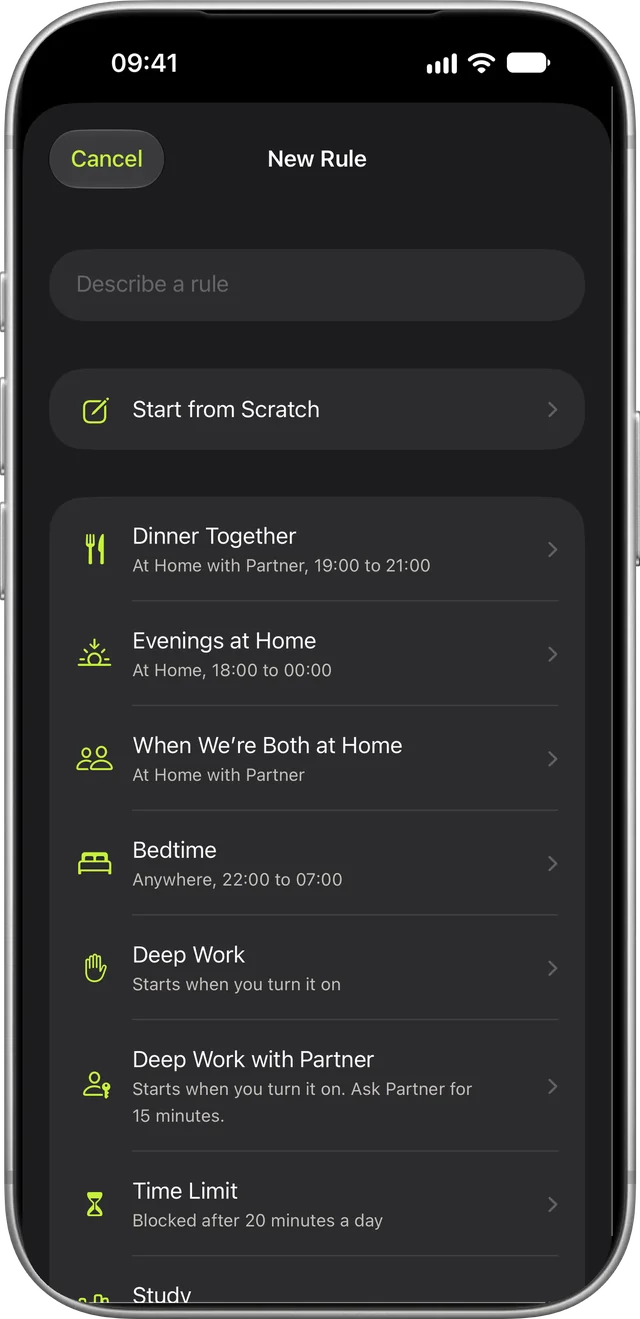
That’s what MindFence does. Save the place once and make a rule: Block social and games when I’m at Library. Walk in and it starts, even with the app closed. After you leave, the apps open again. The Study template sets this up for you.
Studying at a desk at home? Add a time to the place, like weekdays from 09:00 to 17:00, so the evenings stay yours.
How to block apps by location on iPhone has the setup step by step.
If you study on a laptop, the same rule can block sites on your Mac too, in Safari and Chrome, while you’re at your study spot. Keep MindFence open in the menu bar so it notices when you arrive. See how to block websites on a Mac.
8. Make getting past it slow
A short wait is often enough to make you notice what you’re doing, and you can still get in when you really need to. In MindFence, Wait to Open makes you wait 10 seconds to 5 minutes, then lets you in for 15 minutes.
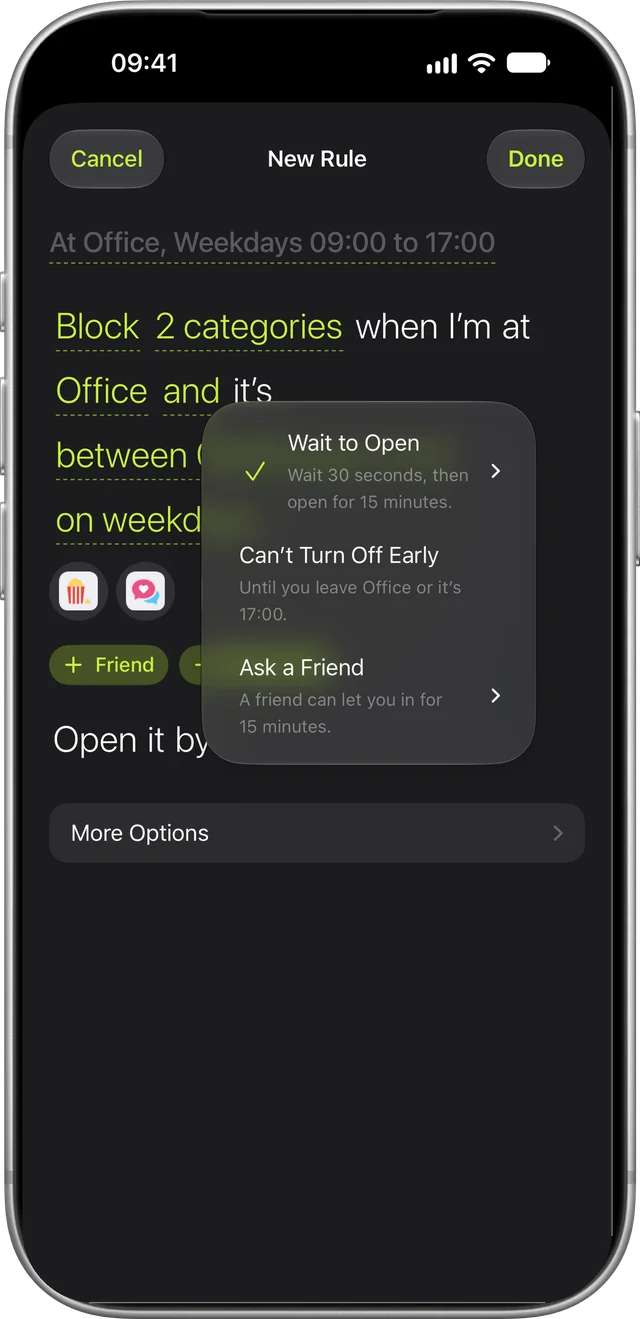
Exam week? Can’t Turn Off Early keeps a rule on until you leave or the time is up.
9. Study with a friend
It’s easier to keep going when a friend is working too. In MindFence, a rule can start when you’re both at the library, so you keep each other on track. Or set a rule to Ask a Friend, and they can approve 15 minutes when you need an app. You can also see each other’s Time Blocked. Friends never see which apps you block.
A setup to copy
- Phone in your bag, across the room.
- A Focus that starts when you get to where you study.
- A rule that blocks social and games there, with a 30-second wait.
- 45 minutes of work, then 10 minutes with your phone, away from the desk.
Start with that, then change one thing at a time. If you still find the phone in your hand, make the wait longer. If the block gets in the way of something you need, allow that app.
Try it
No account needed. MindFence works on iPhone and iPad with iOS 18 or later, and on Mac with macOS 15.3 or later.
Free for 7 days.
Privacy says what leaves your phone.